Several mixers at once
Every mixer of the show, side by side.
YAMC connects to several X Air and M Air mixers at the same time and keeps all of them live. Look at two at once, line them up as one desk, or jump from one to the next — without disconnecting or losing your place.
Three ways to see them
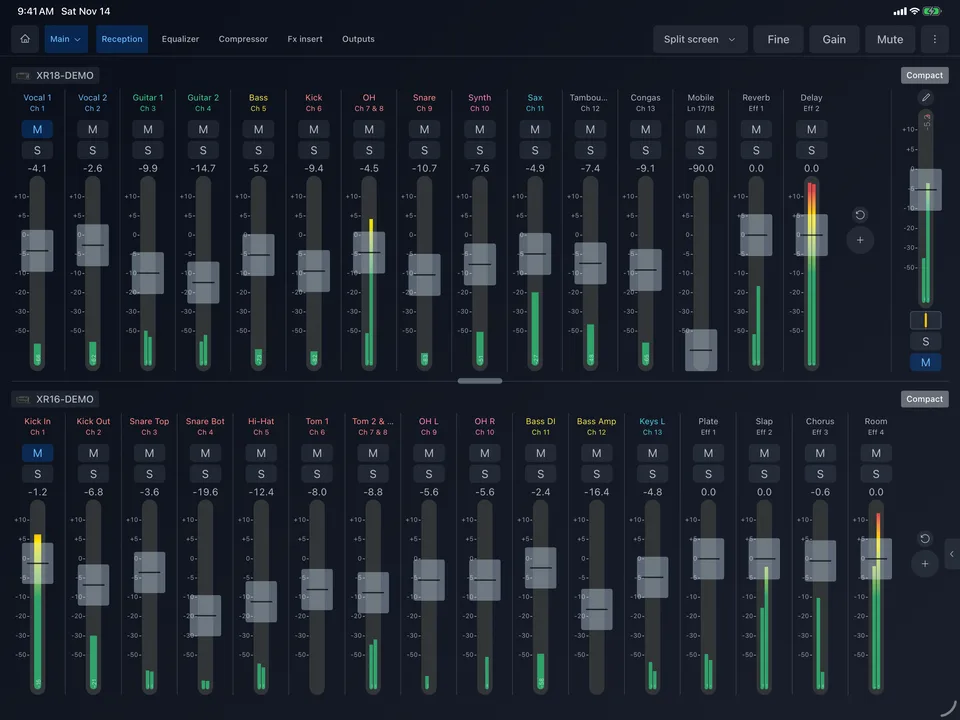
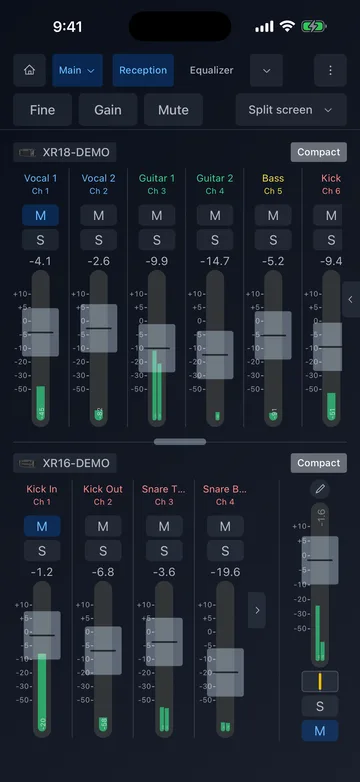
Split screen
Two mixers on one screen, one above the other. Choose which mixer goes in each half, drag the divider to share the height, and switch both between reception, EQ, compressor and outputs with one tab bar. Compact mode fits more channels.
Cascade
All channel strips of all connected mixers in a single row that scrolls left and right, like one large desk. The main faders of every mixer stay on the right, always in reach.
One at a time, a swipe apart
One mixer full screen; swipe to the next — with a finger, two fingers on a trackpad or a Magic Mouse — or pick it in the header. Pull on past the end of the strips and you are on the next mixer.
Made for real setups
Each mixer keeps its own audio — YAMC brings their controls together, so one person can run them all.
FOH and monitors
The front-of-house mix on one mixer, the musicians' monitor mixes on another — both in your hand while you walk between the stage and the room.
More inputs than one mixer has
Two XR18s for a bigger band: see their 32 microphone inputs in one row in cascade instead of switching apps.
Two stages, one engineer
A main stage and a side stage, a church hall and its overflow room, a conference with breakout rooms: keep an eye and a hand on every mixer.
Band, playback and broadcast
The band on one mixer, playback and announcements on another, a stream or recording feed on a third.
What works across all mixers
- The header tools — fine control, gain and mute — work in split screen and cascade too.
- The mute panel shows the mute groups of every mixer on screen, each under its name.
- Every connected mixer gets its own automatic backups and its own mute history.
- The order of the mixers is yours: it is used by the switcher, the swipes, split screen and cascade.
- Mixers of different models work together: X Air and M Air, 12, 16 and 18 channels.
How to connect several mixers
- Put all mixers on the same network as your iPhone or iPad — a router or access point they all join.
- Open YAMC and add the first mixer: Search finds it, or type its IP address.
- Add the next one the same way: the first stays connected.
- Open the menu and choose Split screen or Cascade — or just swipe.
Questions about several mixers
How many mixers can YAMC control at once?
As many as your network and device handle comfortably — two or three is typical. Split screen shows two at a time; cascade and swiping include all connected mixers.
Do the mixers have to be the same model?
No. Any Behringer X Air (XR18, X18, XR16, XR12) and Midas M Air (MR18, MR12) mixers work together.
Does YAMC link the audio of the mixers?
No. Each mixer processes its own inputs and outputs as usual; YAMC brings their controls together on one screen. Route audio between mixers with cables as you normally would.
Can I try it without having two mixers?
Yes. The demo in the app can run two or three virtual mixers at once, with moving meters, so you can try split screen and cascade before the show.